
<!DOCTYPE html>
<html lang="ja">
<head>
<meta charset="UTF-8" />
<meta name="viewport" content="width=device-width, initial-scale=1" />
<title>Google Maps表示サンプル</title>
<style>
  /* 地図表示するエリアを設定 */
  #map {
    height: 350px;
    width: 750px;
  }
  body, html {
    margin: 10 auto;
    padding: 0;
    height: 100%;
  }
</style>
</head>
<body>
<div align="center">
<div id="map"></div>
</div>
<script>
  function initMap() {
    const tokyo = { lat: 35.681236, lng: 139.767125 }; // 東京駅の座標
    const map = new google.maps.Map(document.getElementById("map"), {
      zoom: 15,
      center: tokyo,
    });
const marker = new google.maps.Marker({
  position: { lat: 35.679476, lng: 139.771824 }, // 東京駅の座標
  map: map, // すでに定義された地図インスタンス
  title: 'アーティゾン美術館',
  animation: google.maps.Animation.DROP // または BOUNCE
});
const info = new google.maps.InfoWindow({
  content: '<div>アーティゾン美術館</div><div><a href="#">リンクとか入れられる</a></div>'
});
// 吹き出しを最初から開く
info.open(map, marker);

//クリックで開く
//marker.addListener("click", () => {
//  info.open(map, marker);
//});
}
</script>

<!-- ここにAPIキーを差し替えてください -->
<script async
  src="https://maps.googleapis.com/maps/api/js?key=YOUR_API_KEY&callback=initMap">
</script>

</body>
</html>
基本のマーカー表示
const marker = new google.maps.Marker({
position: { lat: 35.681236, lng: 139.767125 }, // 東京駅の座標
map: map, // すでに定義された地図インスタンス
title: '東京駅'
});
position: マーカーを表示する座標
map: 表示対象の地図インスタンス
title: ホバーで表示されるタイトル
カスタムアイコンを使う
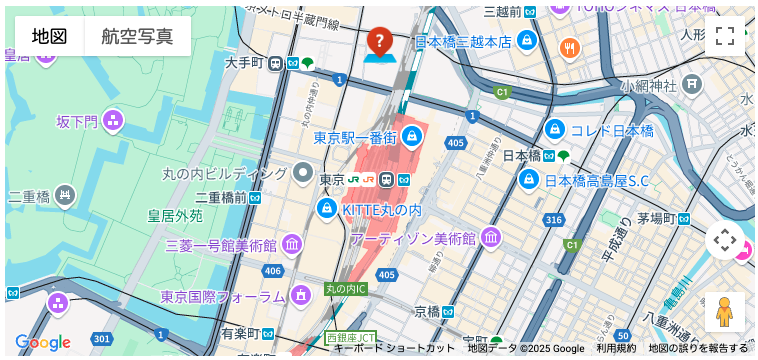
const marker = new google.maps.Marker({
position: { lat: 35.681236, lng: 139.767125 },
map: map,
icon: {
url: 'icon.png',
scaledSize: new google.maps.Size(32, 32) // サイズ調整
}
});
url: 任意の画像パスを指定
scaledSize: サイズをピクセル単位で指定可能
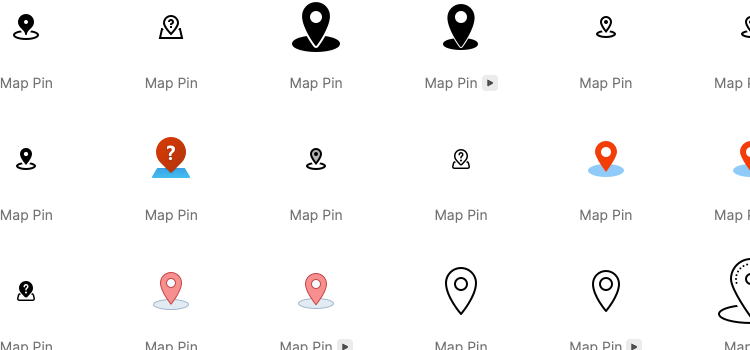
ピン画像ダウンロードサイト
https://icons8.com/icons/set/map-pin
https://mapicons.mapsmarker.com/
マーカーにアニメーションをつける
const marker = new google.maps.Marker({
position: { lat: 35.681236, lng: 139.767125 },
map: map,
animation: google.maps.Animation.BOUNCE // または DROP
});
BOUNCE: バウンドする動き
DROP: 上から落ちてくる動き
複数マーカーの管理
const locations = [
{ lat: 35.681236, lng: 139.767125, title: '東京駅' },
{ lat: 34.702485, lng: 135.495951, title: '大阪駅' }
];

locations.forEach(loc => {
new google.maps.Marker({
position: { lat: loc.lat, lng: loc.lng },
map: map,
title: loc.title
});
});
配列+ループで効率的に表示
InfoWindow(吹き出し)を表示する
const marker = new google.maps.Marker({
position: { lat: 35.681236, lng: 139.767125 },
map: map,
title: '東京駅'
});

const info = new google.maps.InfoWindow({
content: '<div>東京駅です</div>'
});

marker.addListener('click', () => {
info.open(map, marker);
});
複数マーカーがある場合、1つの InfoWindow を使いまわすことも可能
クラス化によるマーカー管理(実用パターン)
class CustomMarker {
constructor(map, lat, lng, title, content) {
this.marker = new google.maps.Marker({
position: { lat, lng },
map: map,
title: title
});

this.info = new google.maps.InfoWindow({
content: content
});

this.marker.addListener('click', () => {
this.info.open(map, this.marker);
});
}
}
// 使用例
new CustomMarker(map, 35.681236, 139.767125, ‘東京駅’, ‘<strong>東京駅です</strong>’);
実務で多用されるパターン
マーカーごとの吹き出しも含めて管理が簡単になります。